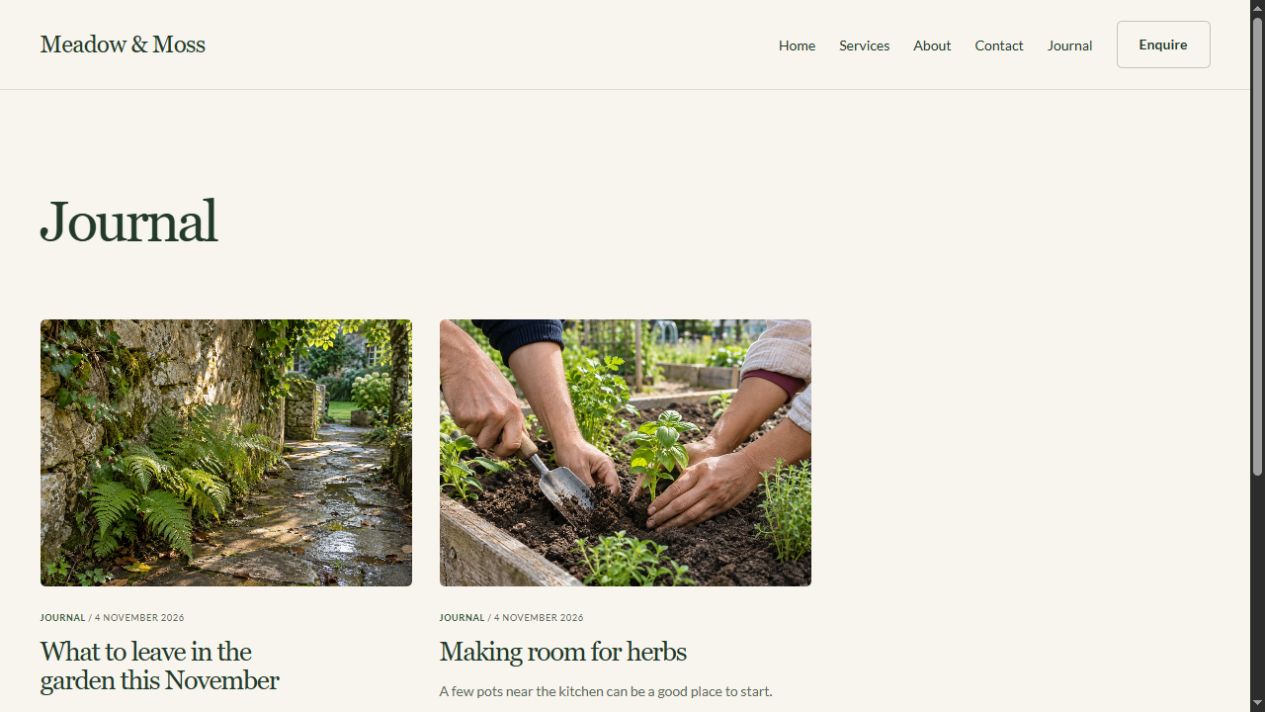
Create the Blog page
In Pages, choose Add page. Set Name to Journal, URL to /journal, and Layout to Blog page. Keep Show in navigation selected, then choose Create page. If an Articles selector appears because you already have a compatible collection, choose Create collection for this exercise.
The Blog page creates a listing and a collection using the Articles preset. Because you named the page Journal, look for Journal in Content. You do not need to create a second Articles collection or manually connect the listing to it.
Write the first article
Open that collection and choose Add entry. In Content, use:
- Title: A garden for shady corners
- Summary: Start with the light you have, then choose planting that belongs there.
- Image: A photograph of shade planting that you own or may use.
- Article: Two or three short paragraphs explaining how you would observe the space, plan a path and choose planting.
For example, begin: “Before choosing plants, watch where the light falls over a whole day. The bright edge of a shady garden may offer different possibilities from the ground beneath a dense canopy.” Continue with your own practical advice. Keep the first article small enough to finish.
Open Details. Enter Alex Rowan as Author and choose an Article date. Leave Featured article off. Search is optional: leave Search title and Search description blank to use the article's Title and Summary, or enter different wording for its search metadata.
Choose Create entry and wait for All changes saved. Open Preview entry to inspect its individual page. A new Blog page includes the author and date in its article design. Check that both are correct, then return to Journal to see the article in the listing. Entry settings → Entry path controls the last part of that article's address.
Add a second entry so you can judge the listing with more than one card. Both entries share the article-page design; their titles, photographs and text come from their own forms. Finish by checking Journal in the header menu and following a card to its article.